- Documentor
- Screenshots
What Documentor looks like.
Screenshots of the application over the fictional ZOO Plyšákov archive: invented documents of a zoo for plush animals, including a scan from 1987. The application interface is in Czech. Click a screenshot to enlarge it and use the arrow keys to browse.
Documents and processing
-
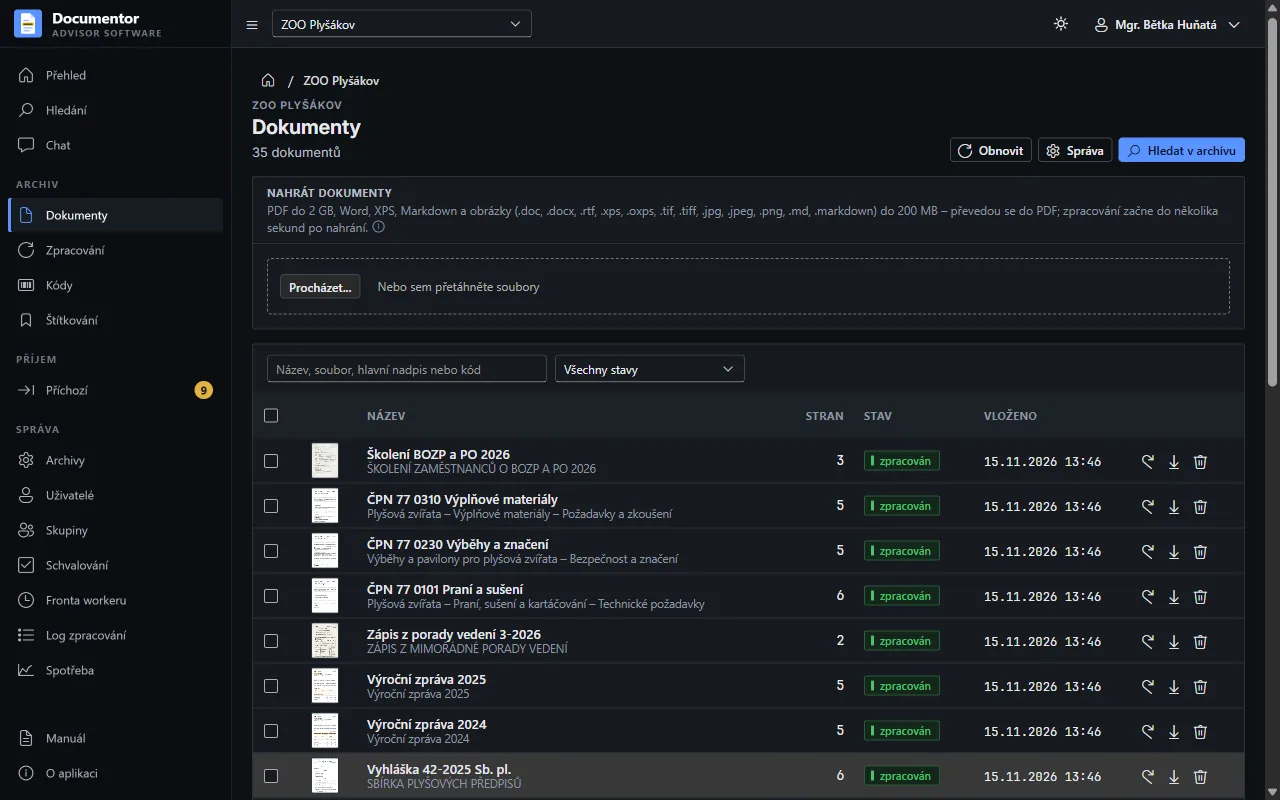
Archive documentsUpload by drag and drop, a list with a first-page thumbnail and the main heading of each document; Word, XPS and images are converted to PDF.
-
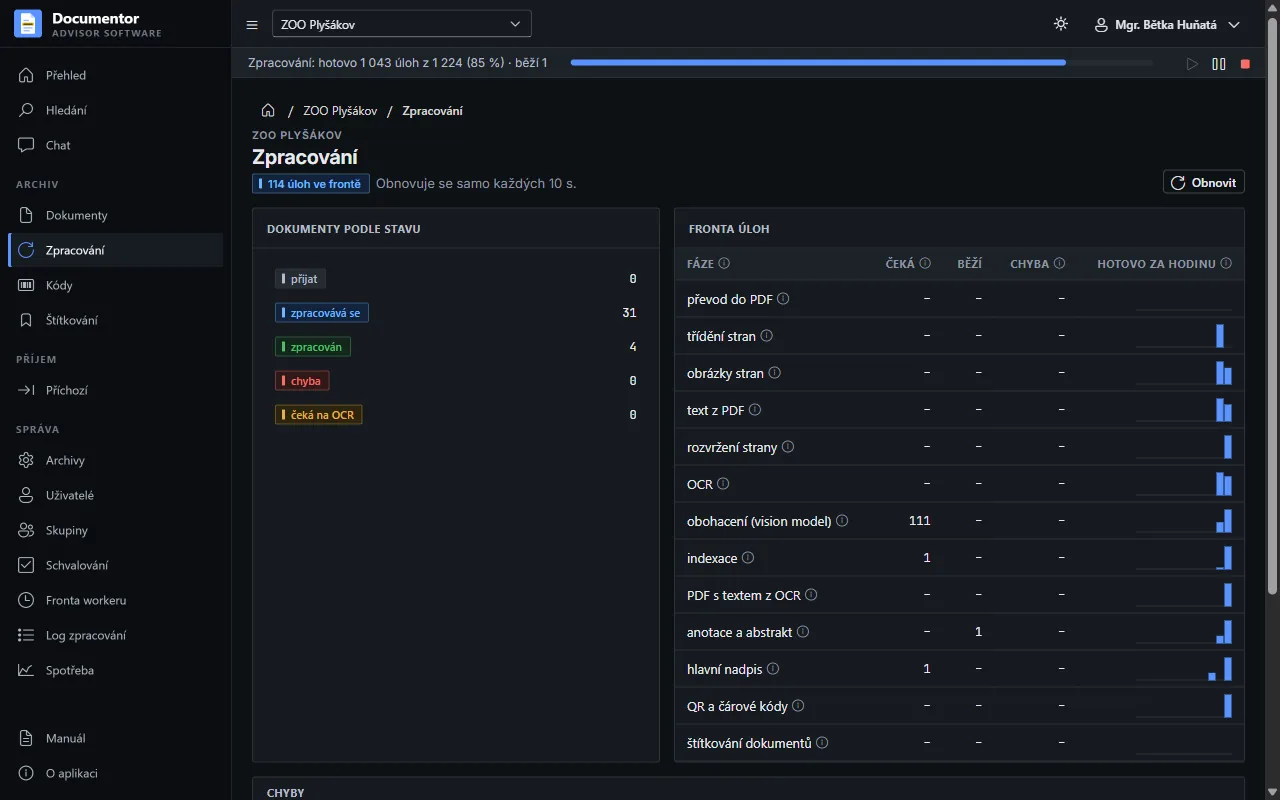
Processing queueDocuments by state and jobs by phase: how many are waiting, running or failed, and how many finished in the last hour. Processing can be paused.
-
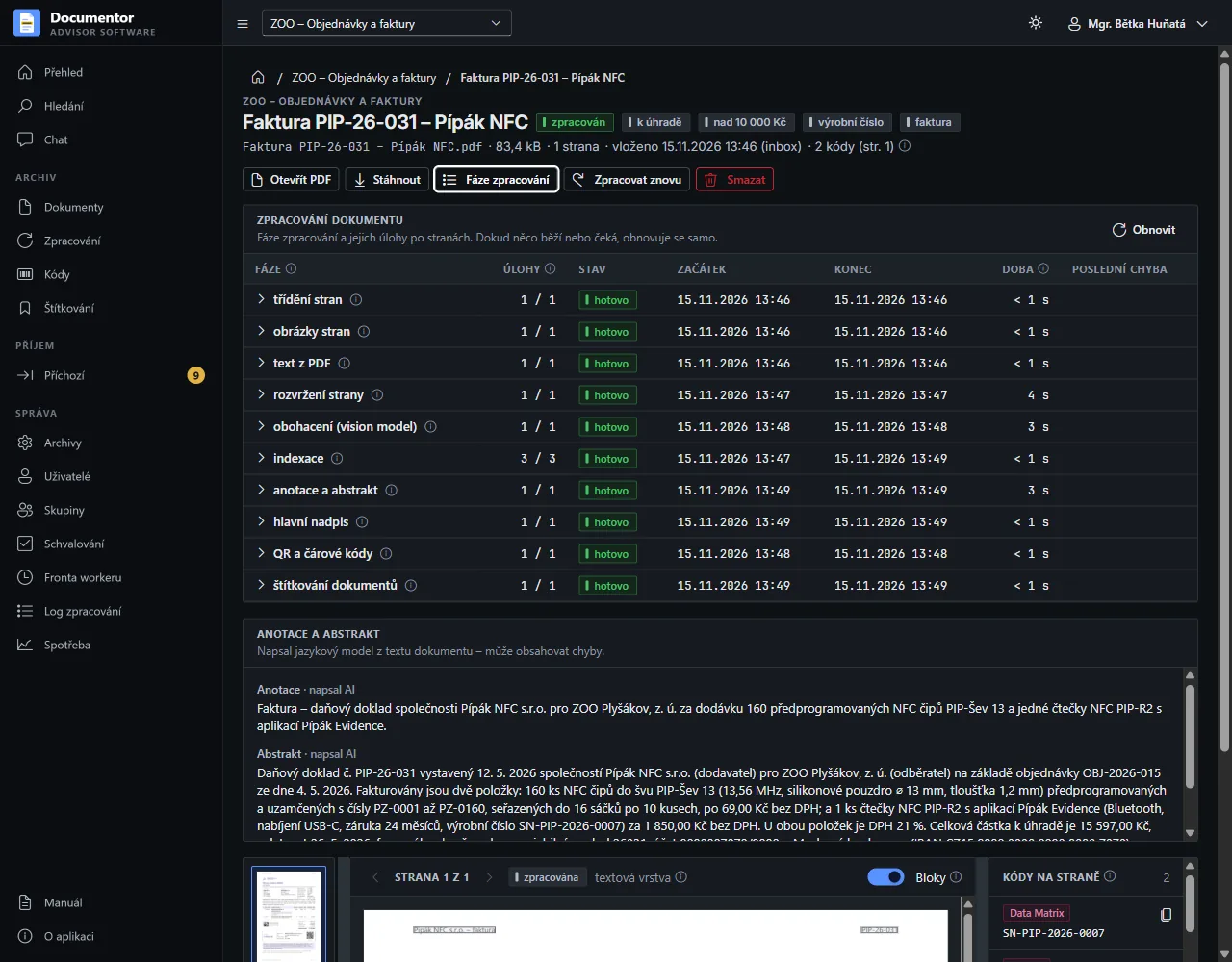
Document phasesFor each document you see when every phase started, how long it took and why it failed, if it did; optional phases such as reading codes and labelling are listed too. A document can be processed again.
-
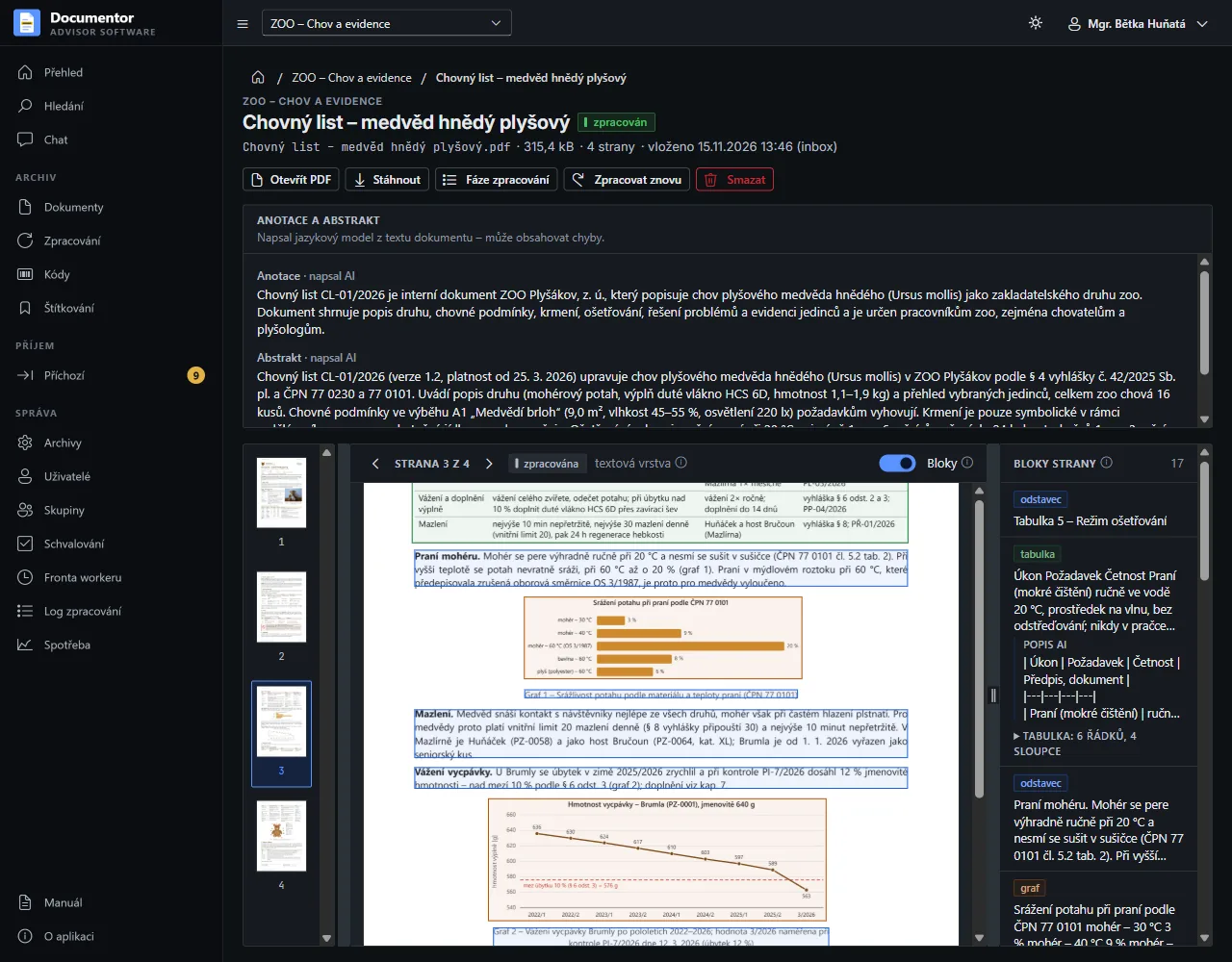
Document detailAn AI annotation and abstract, the page with marked blocks and the list of blocks; tables and charts have a description and their data so they can be searched.
-
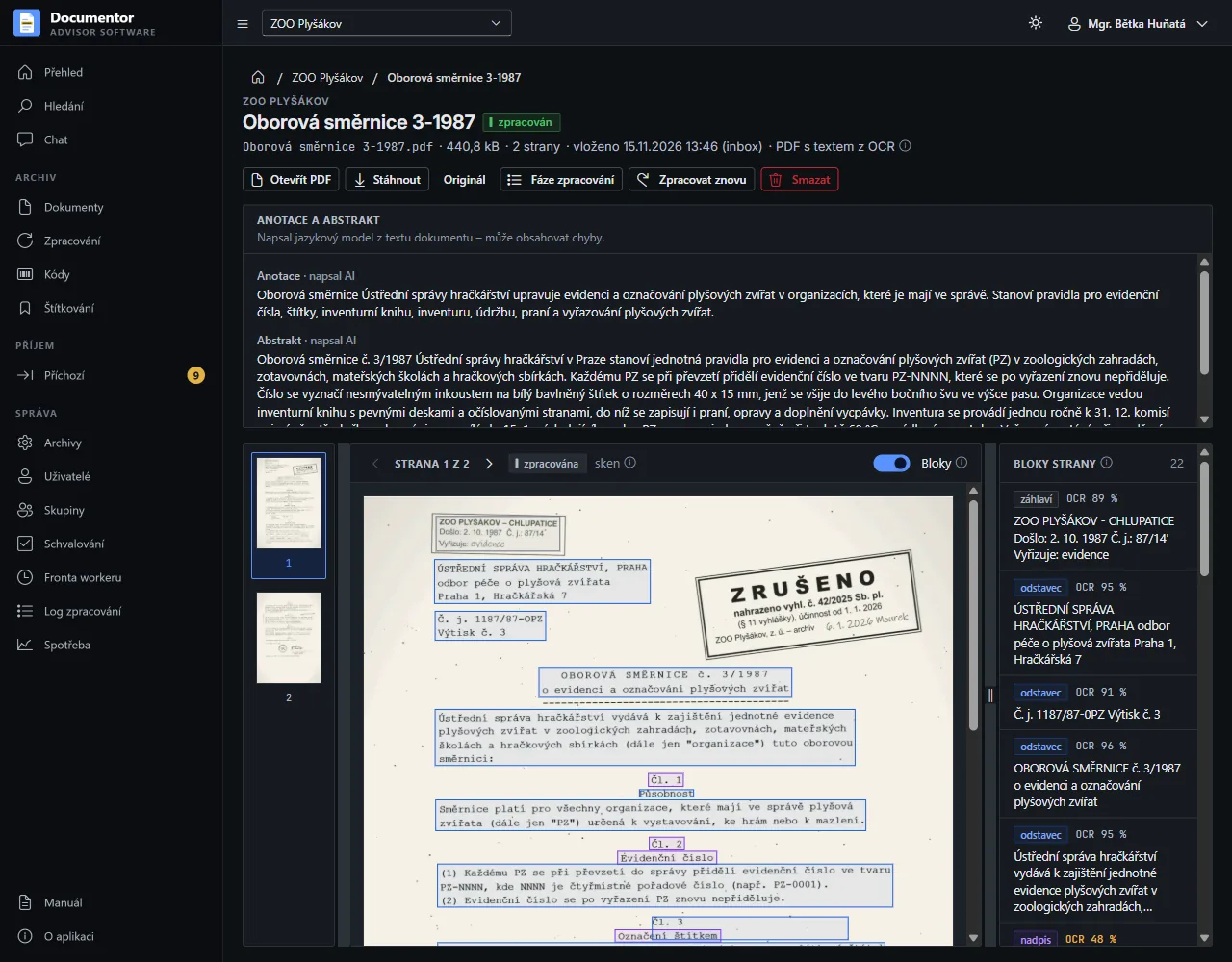
A scan from 1987A page without a text layer goes through OCR. Every block shows its recognition confidence, and uncertain text can be read again by the vision model.
-
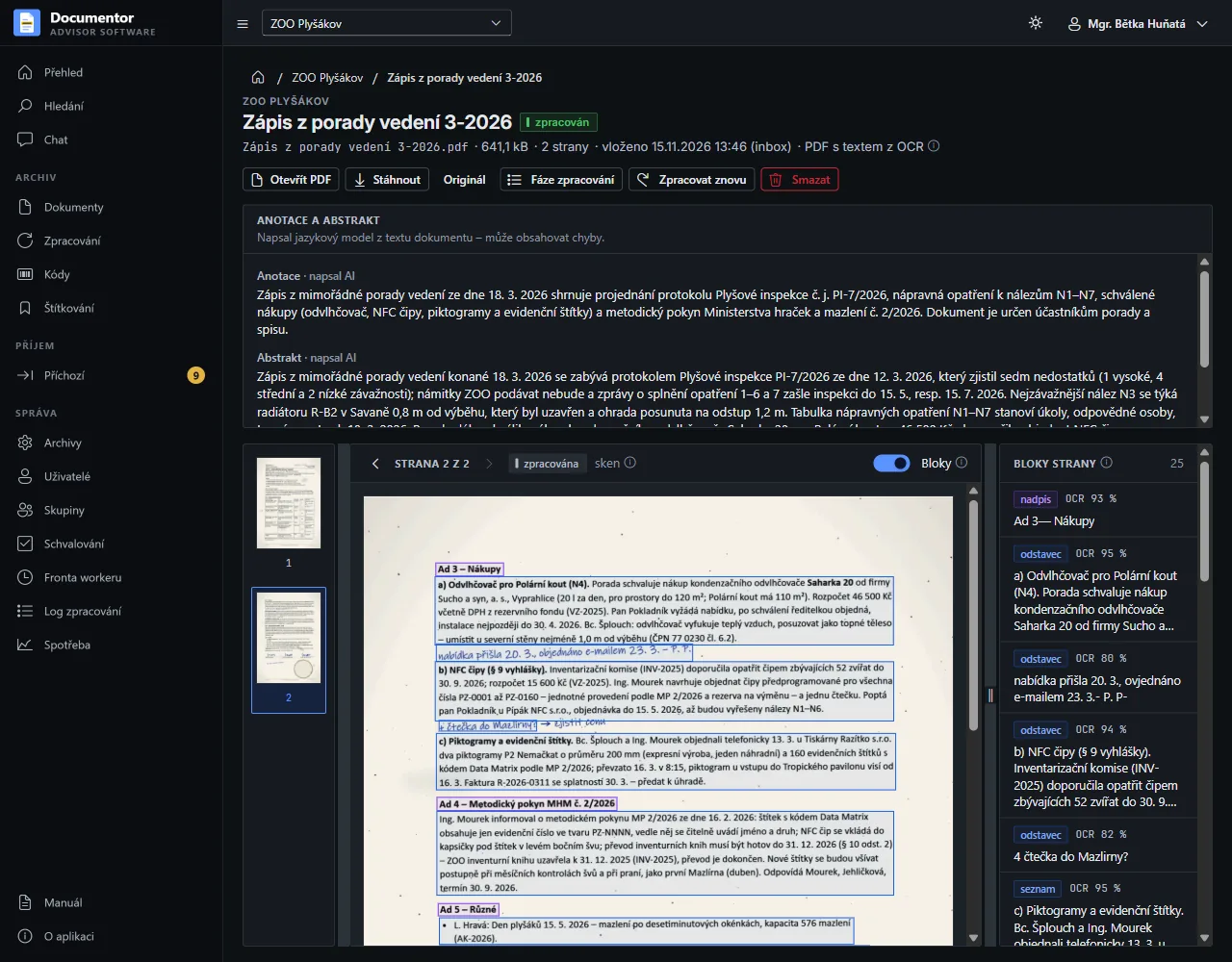
A crumpled scan with notesA skewed, crumpled page with stains goes through OCR as well. Handwritten notes are read with a lower confidence, which the block shows.
QR codes and labels
-
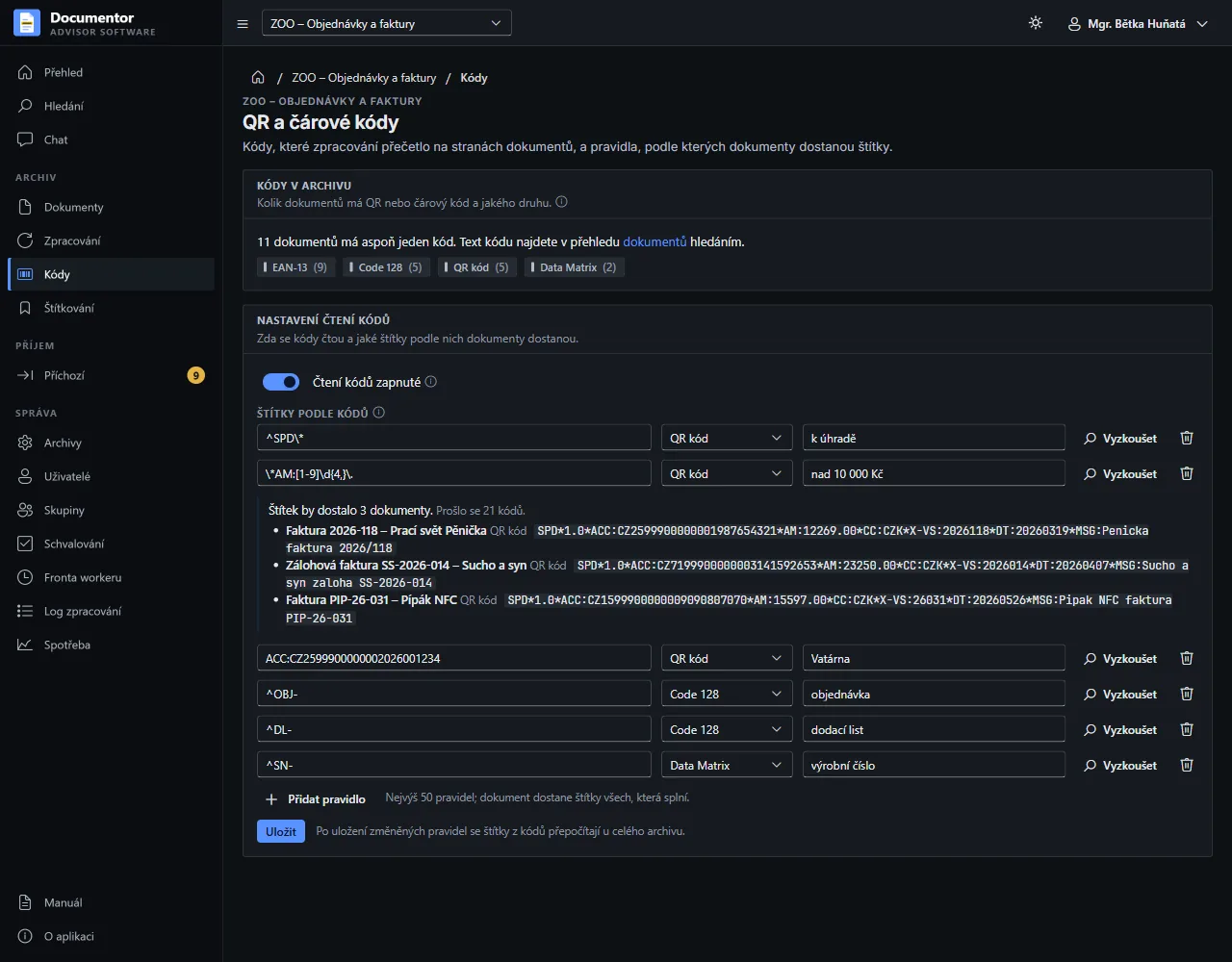
Codes and label rulesAn overview of the codes in the archive and the rules “code pattern → label”: a QR payment gets the label to pay, an amount over CZK 10,000 another one, an order number in Code 128 its own. Try shows the matches before you save the rule.
-
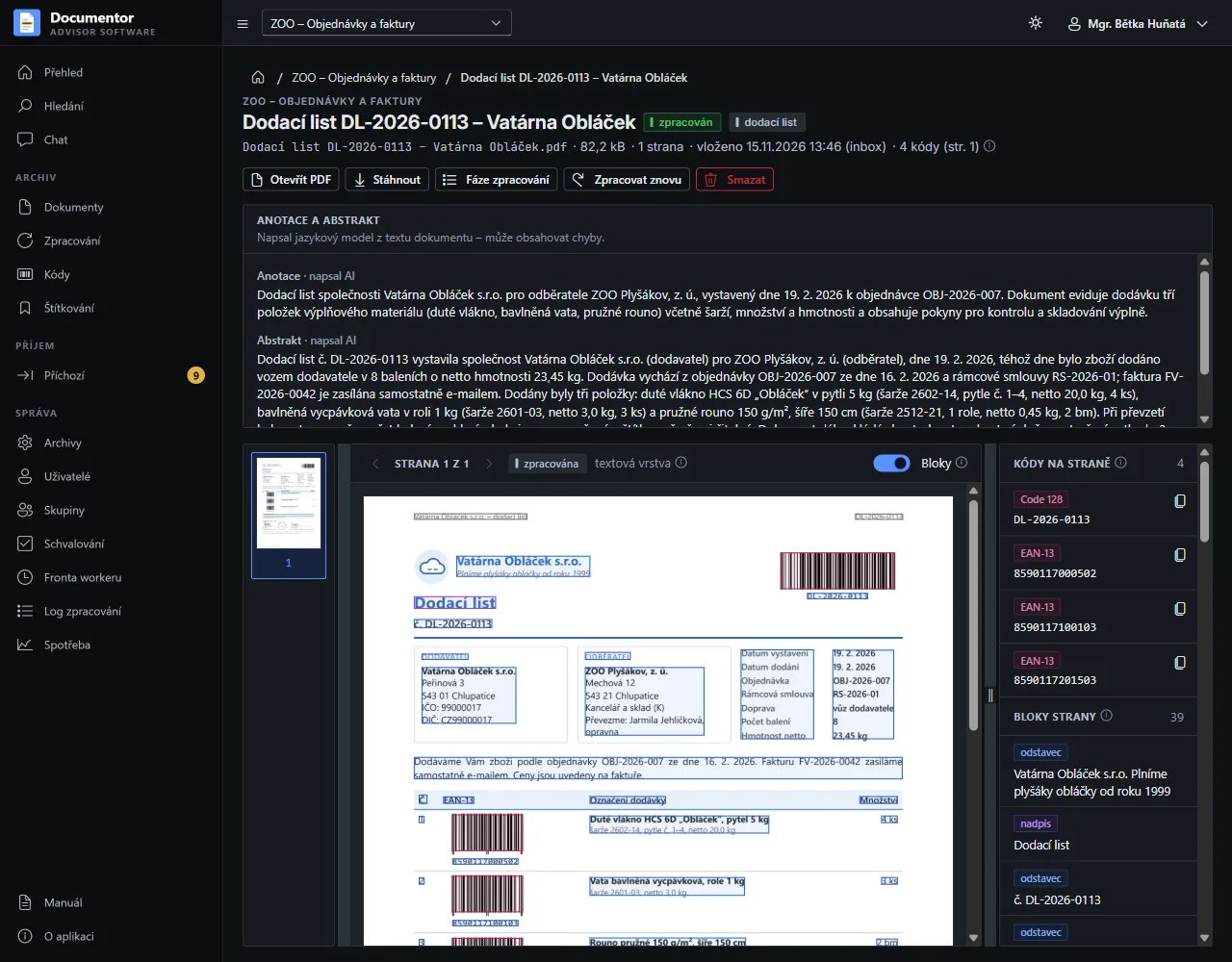
Codes on the pageThe QR and barcodes phase reads the codes on every page, scans included. The detail frames them right on the page, and the code text can be copied or searched for.
-
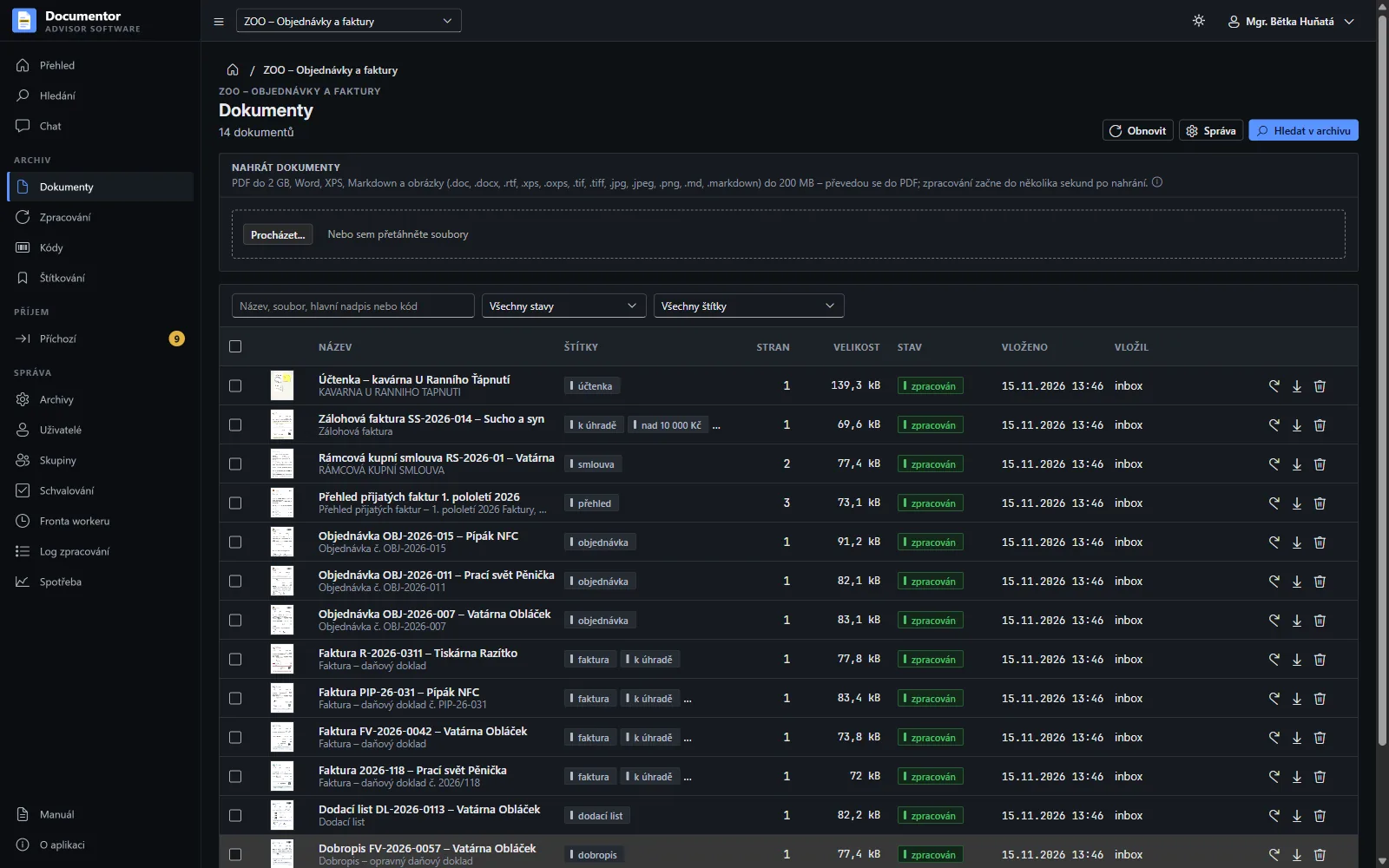
Labels in the listLabels from code rules and from labelling by a language model are shown with every document. Click a label, or use the filter, to see only the documents that have it.
Search
-
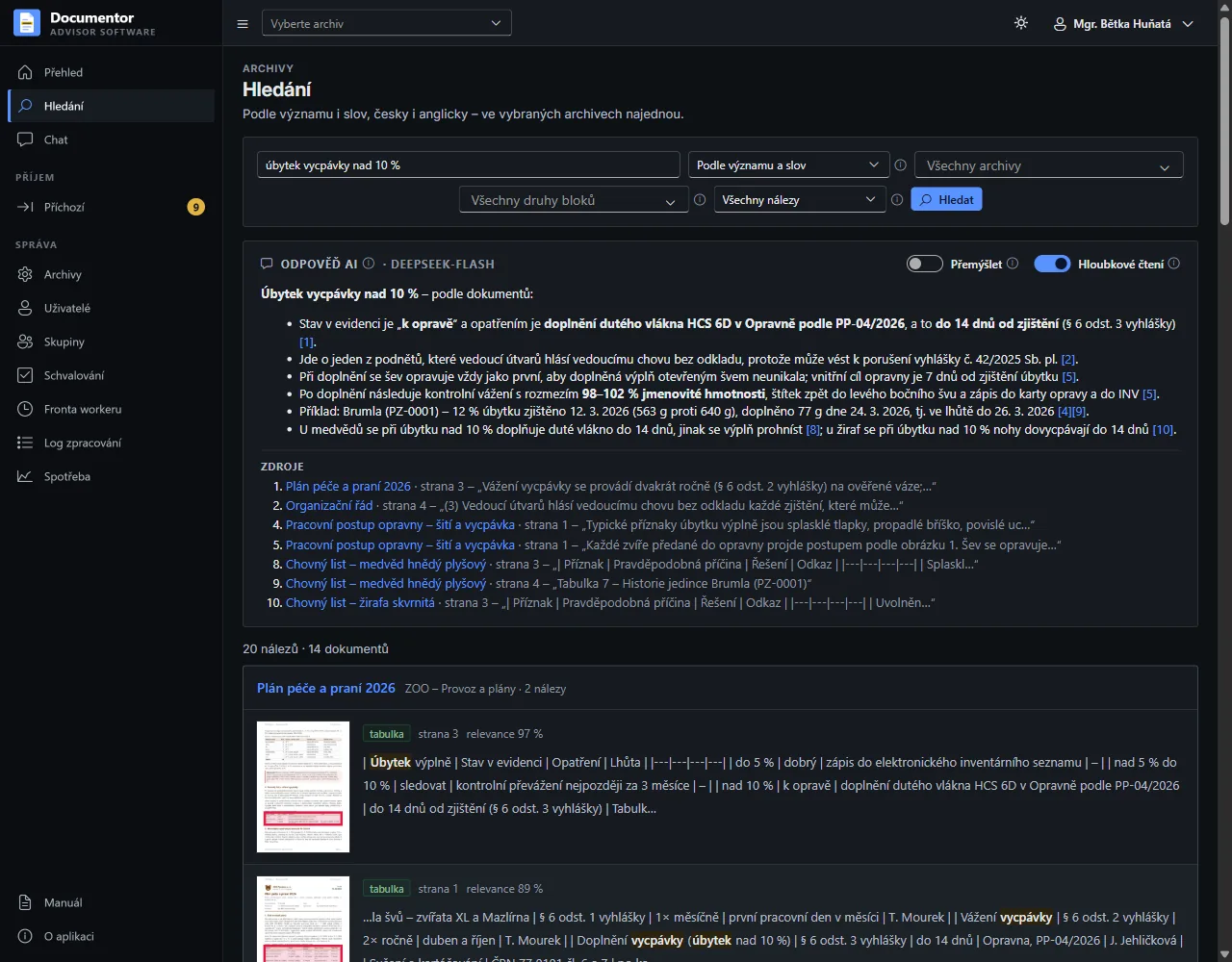
An answer with citationsSearch finds passages by meaning and by words, AI composes an answer from them and cites the document and page for every claim.
-
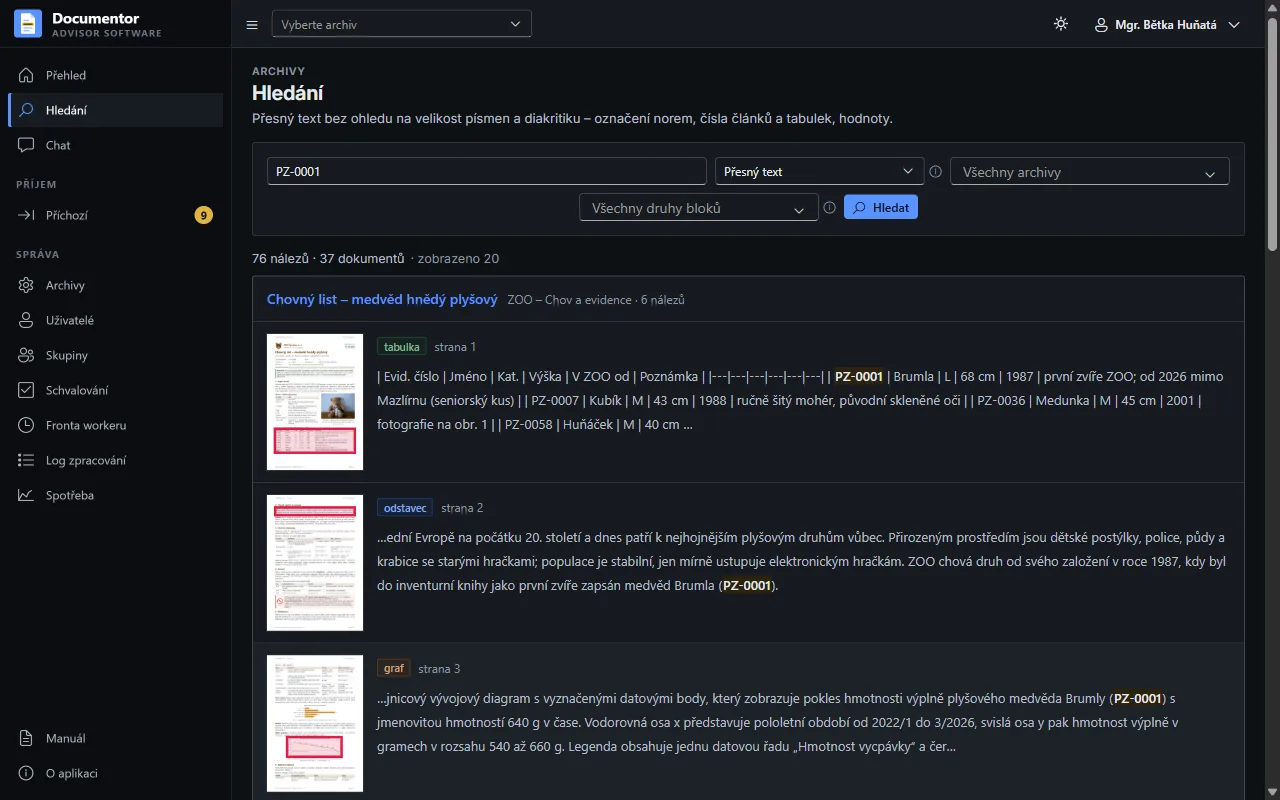
Exact textDesignations, clause numbers and values are found literally, regardless of case and diacritics; each hit shows the block type and the place on the page.
-
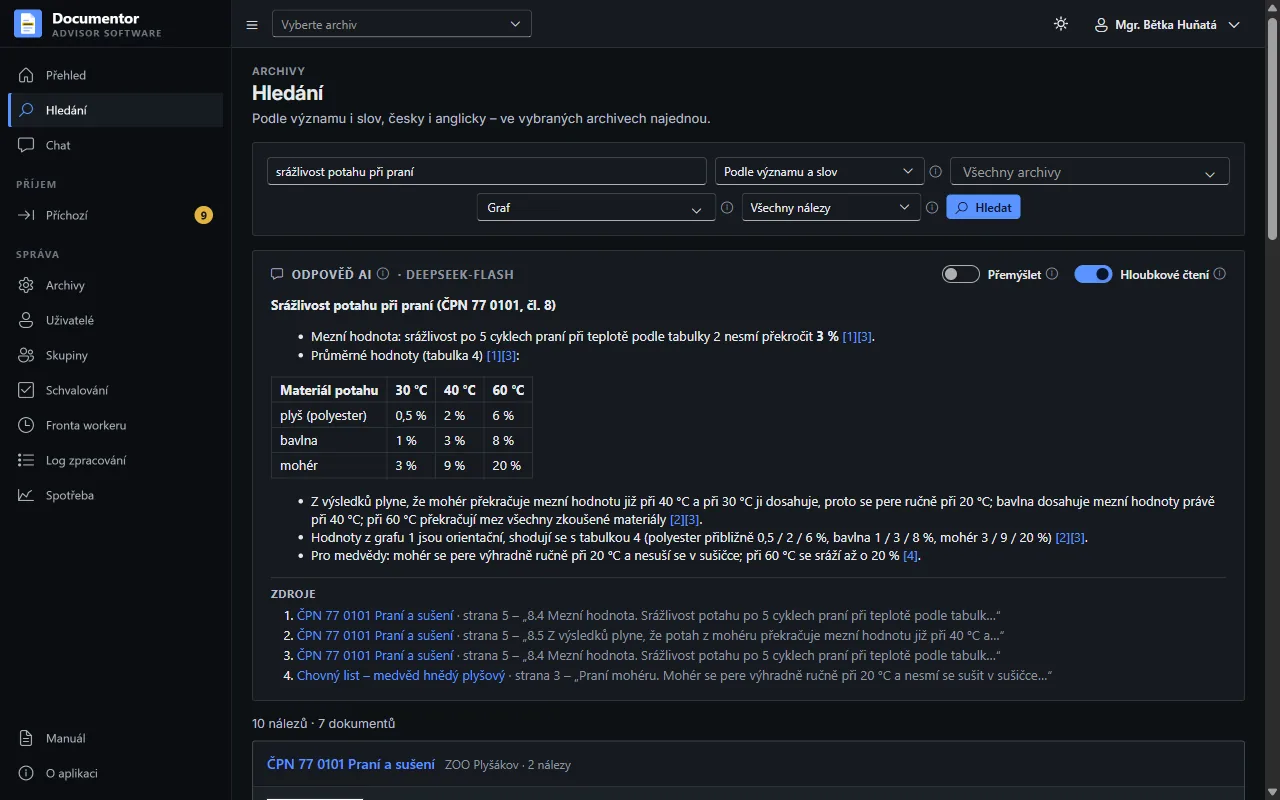
Charts and tablesThe vision model also describes charts and tables, so you can search only in them, and an answer can be built into a clear table from their data.
Chat and research
-
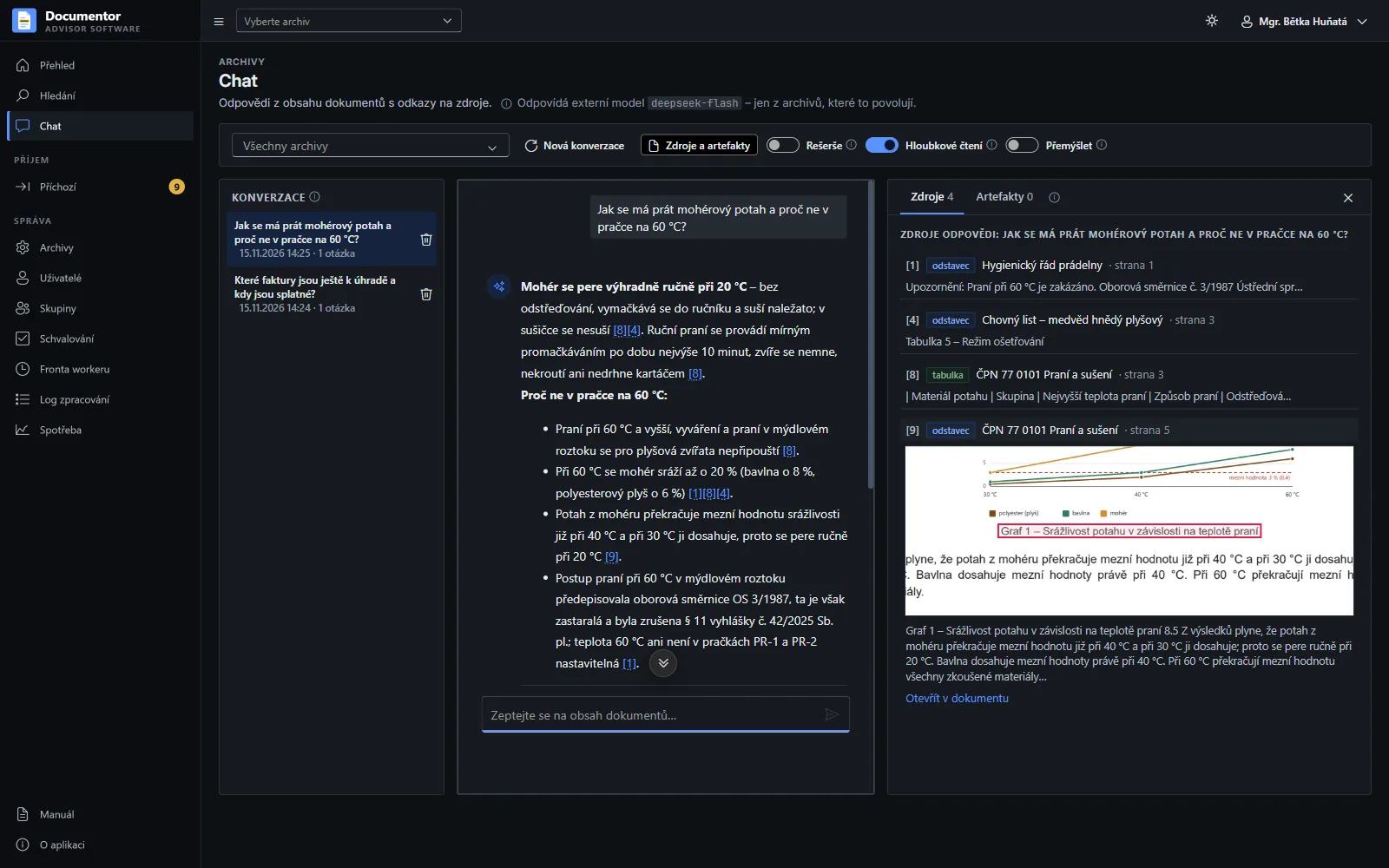
Chat with citationsThe answer is based only on the passages found. Clicking a source number shows a cut-out of the place on the document page in the panel.
-
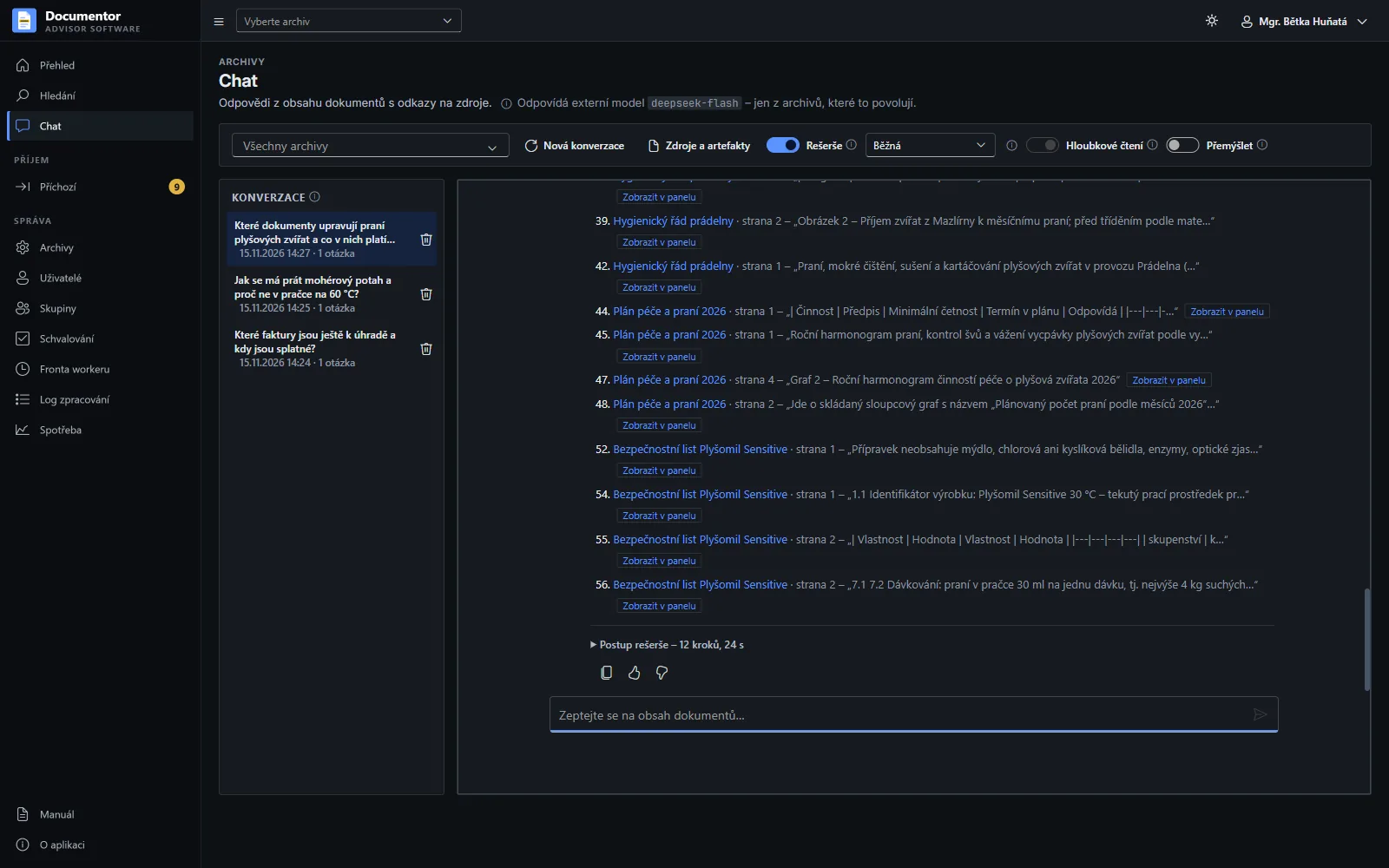
Research in progressThe AI goes through the archive, searches and reads documents and follows references; you watch the progress live and can answer right away or stop the research.
-
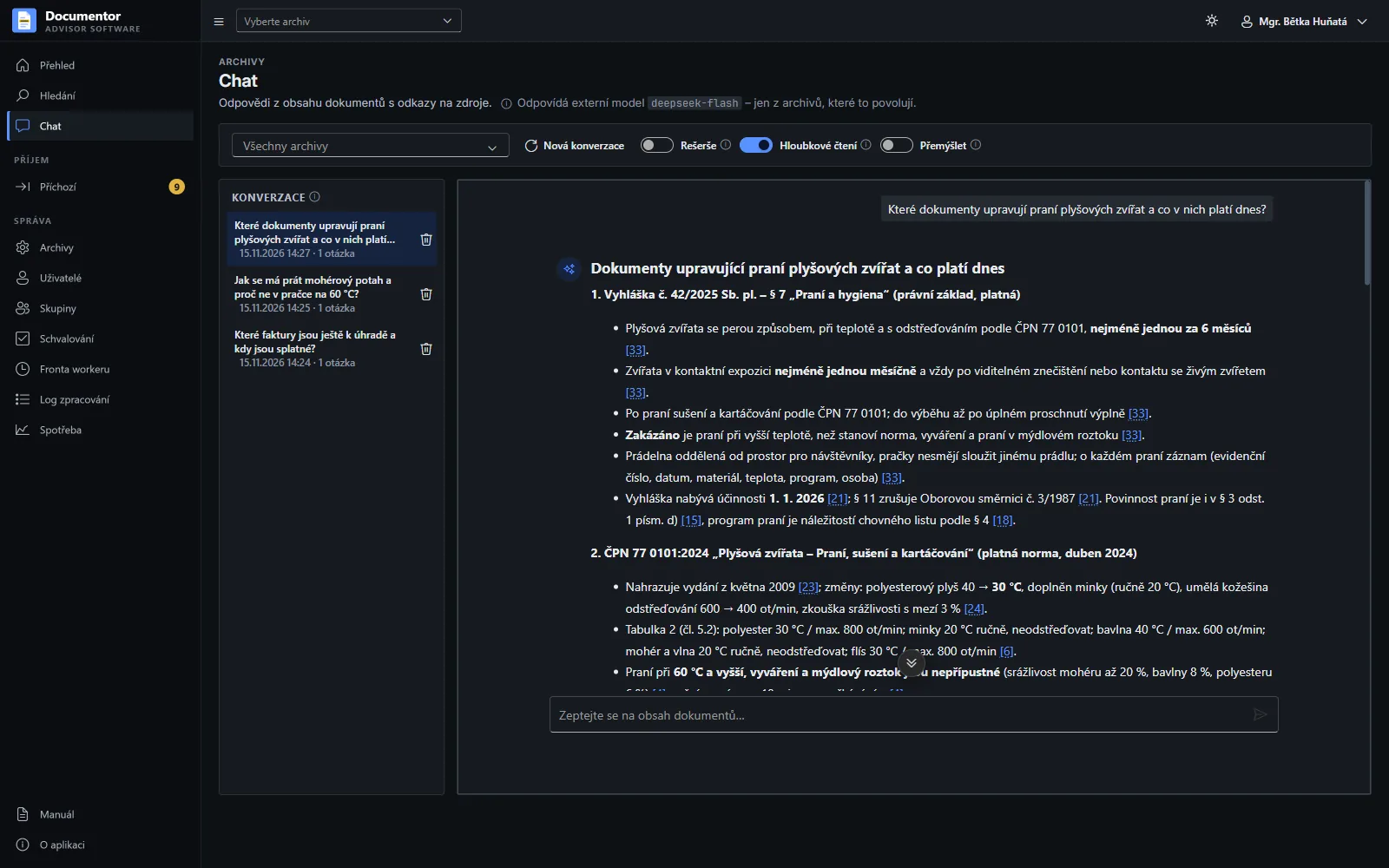
A finished researchAn answer across the whole archive, regulation by regulation, every claim with a link to the page. The research found on its own that the decree repealed the sectoral directive from 1987.
-
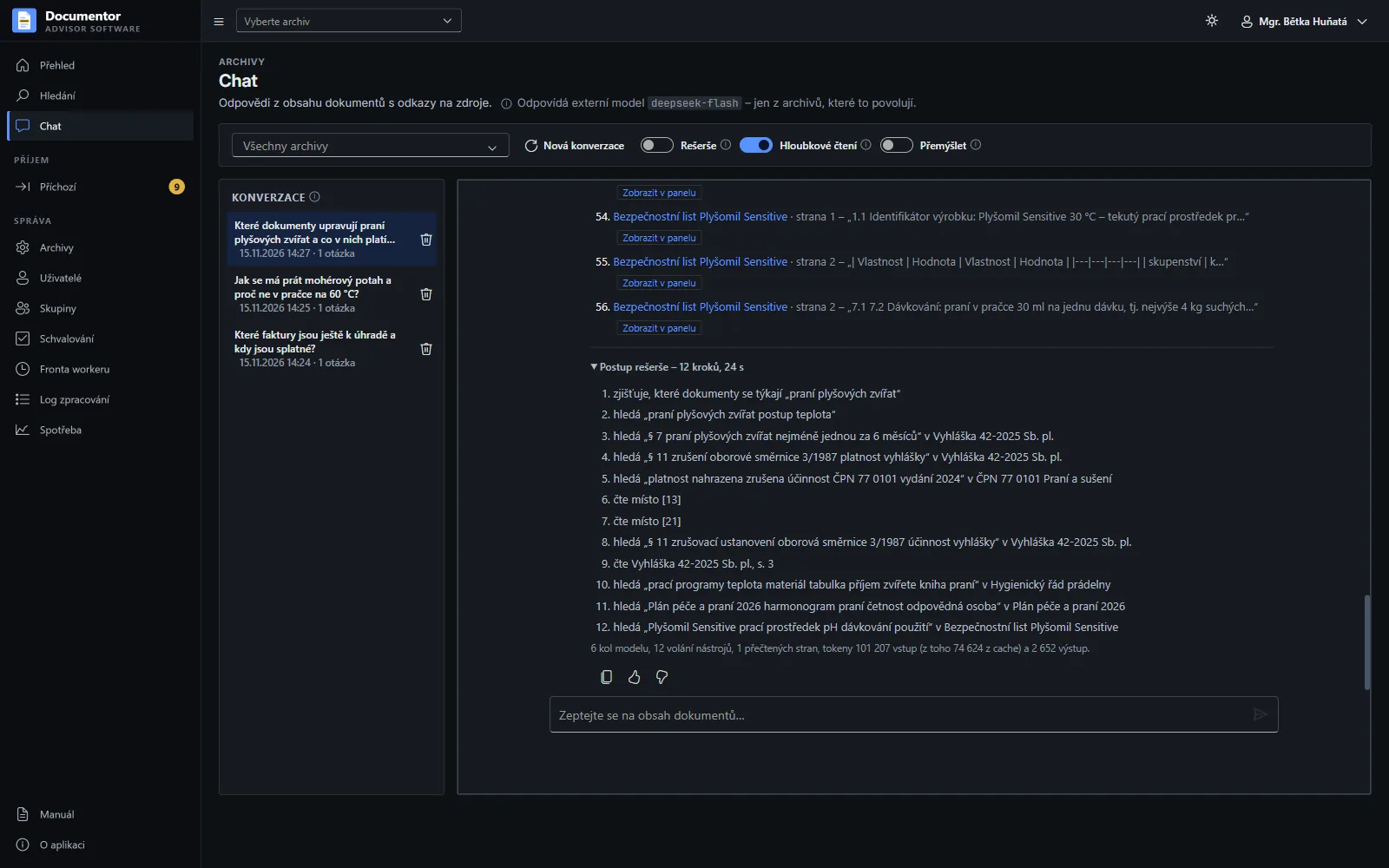
Research stepsEvery research keeps its steps: what the AI looked up, searched for and read, and how many model rounds and tokens it took.
Document intake and sorting (optional plugin)
-
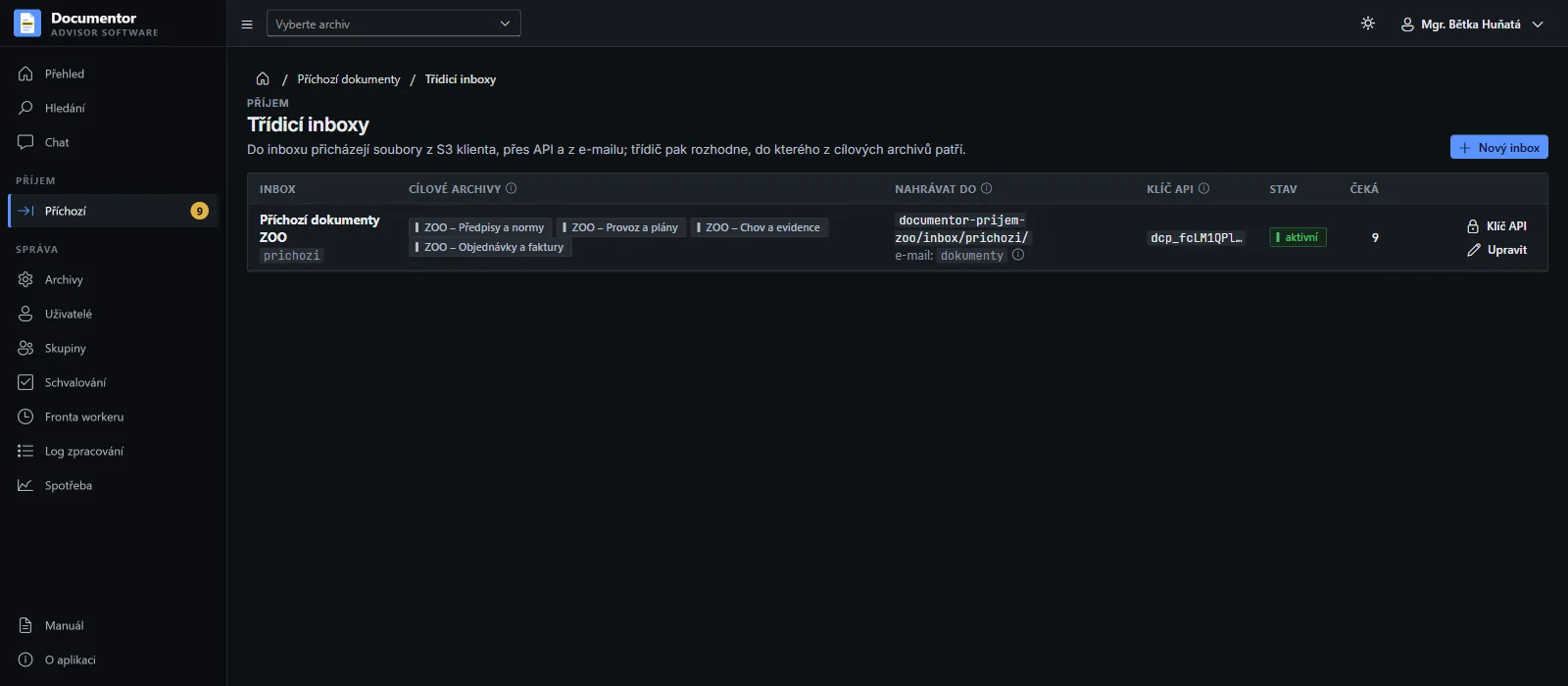
Sorting inboxesAn inbox defines which archives a document may go to and where it comes from: a path in S3, an API key for another system and an e-mail mailbox.
-
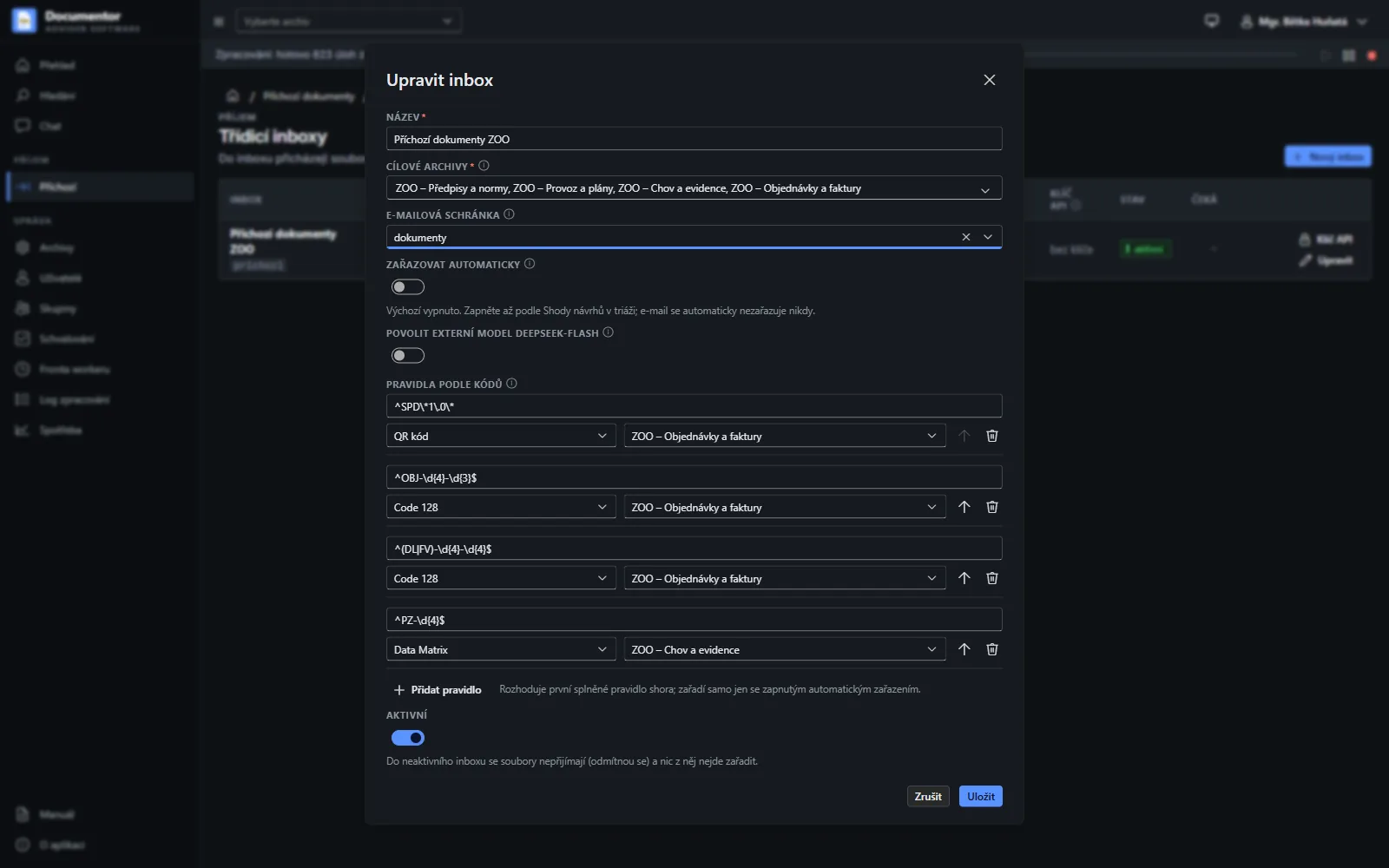
Inbox settingsTarget archives, the mailbox and rules by code: the first matching rule from the top suggests the archive. Automatic sorting is off by default and e-mail is never sorted automatically.
-
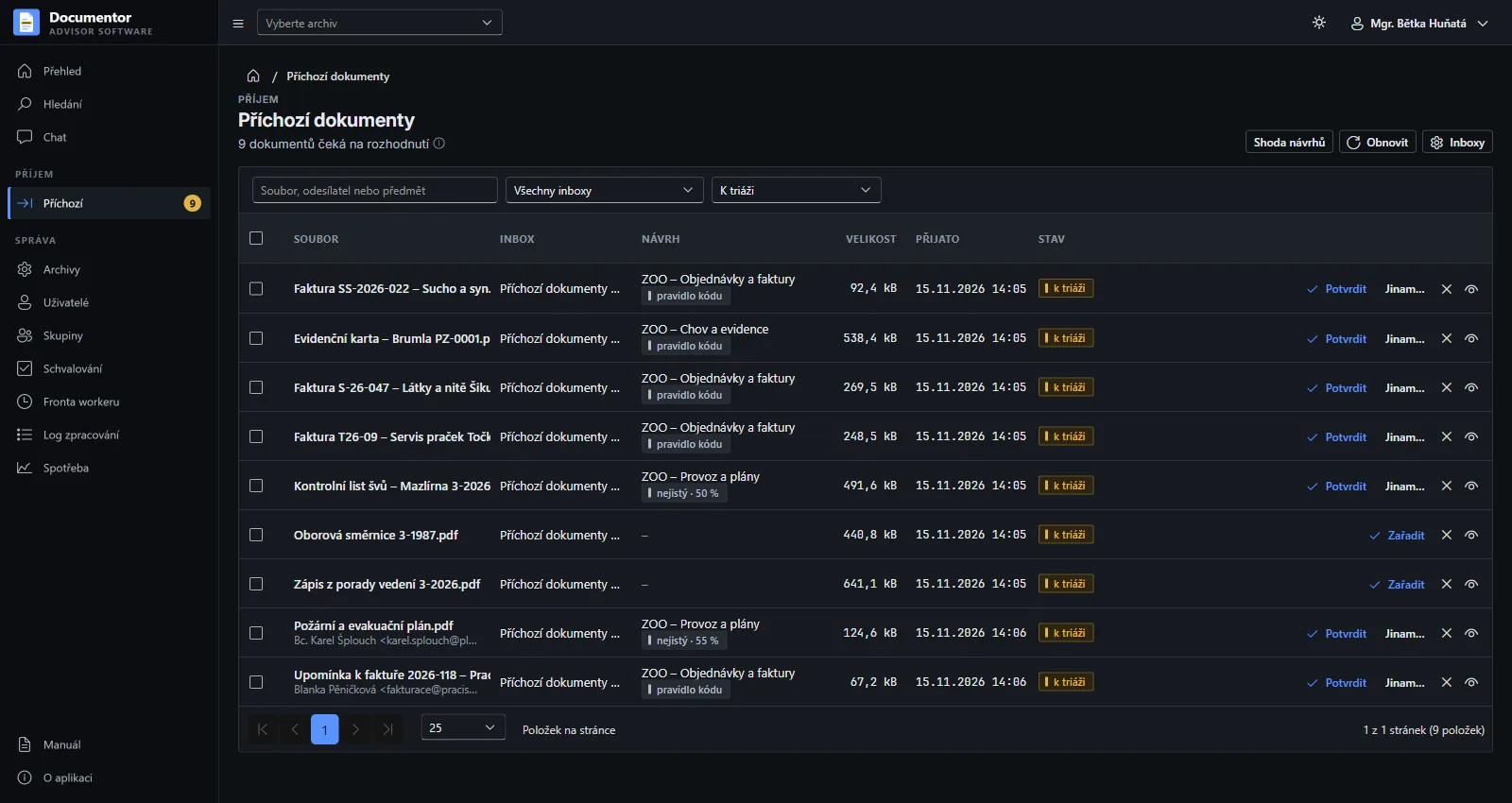
Triage of incoming documentsThe suggested archive comes from a rule by code, from the sender, or by similarity with a confidence label. The sorter confirms it with one click, picks another archive or rejects the document, also in bulk.
-
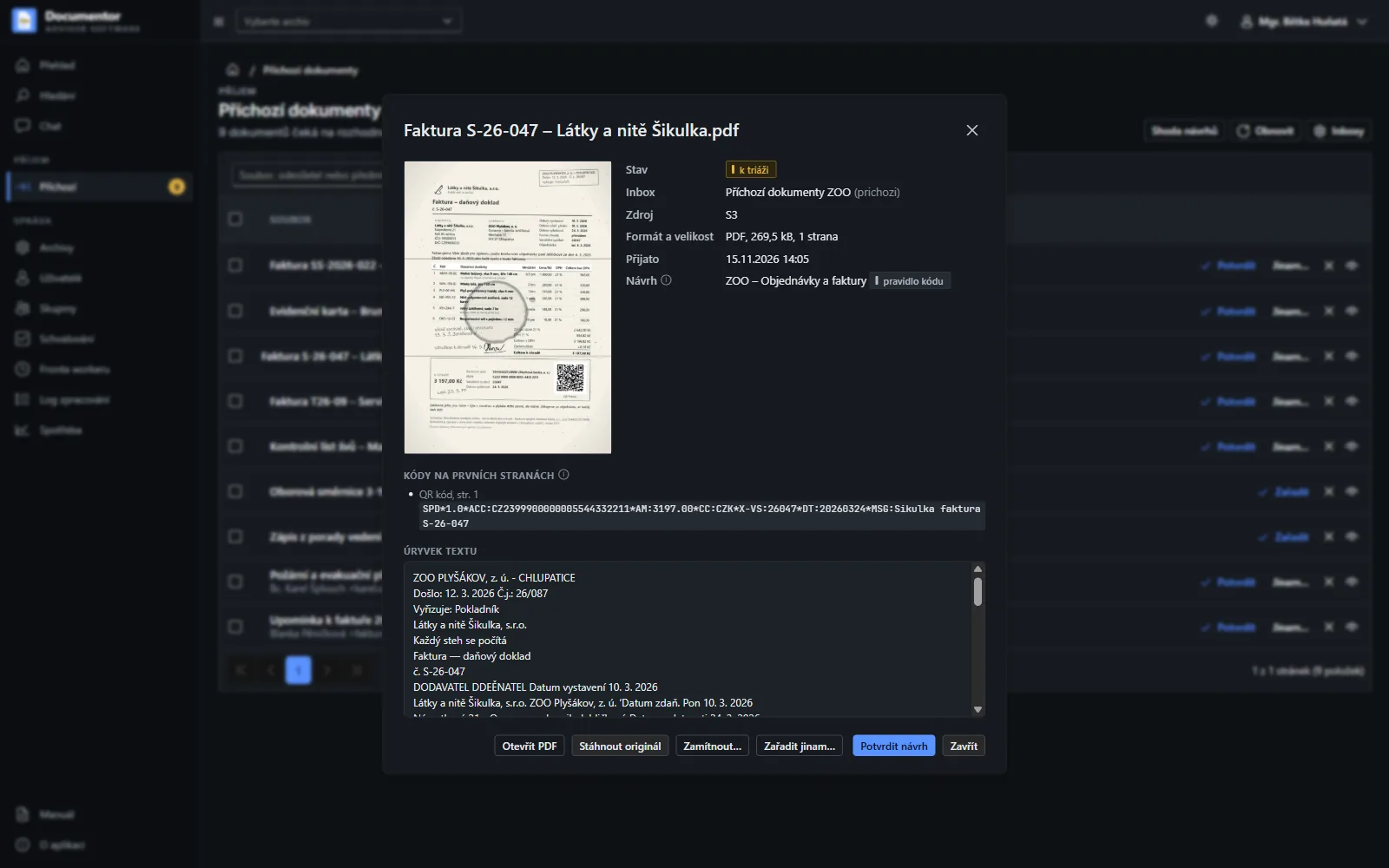
Detail before the decisionA first-page preview, the codes from the first pages, a text excerpt and for e-mail the sender and subject. The QR payment is read even from a crumpled scan with a coffee ring.
-
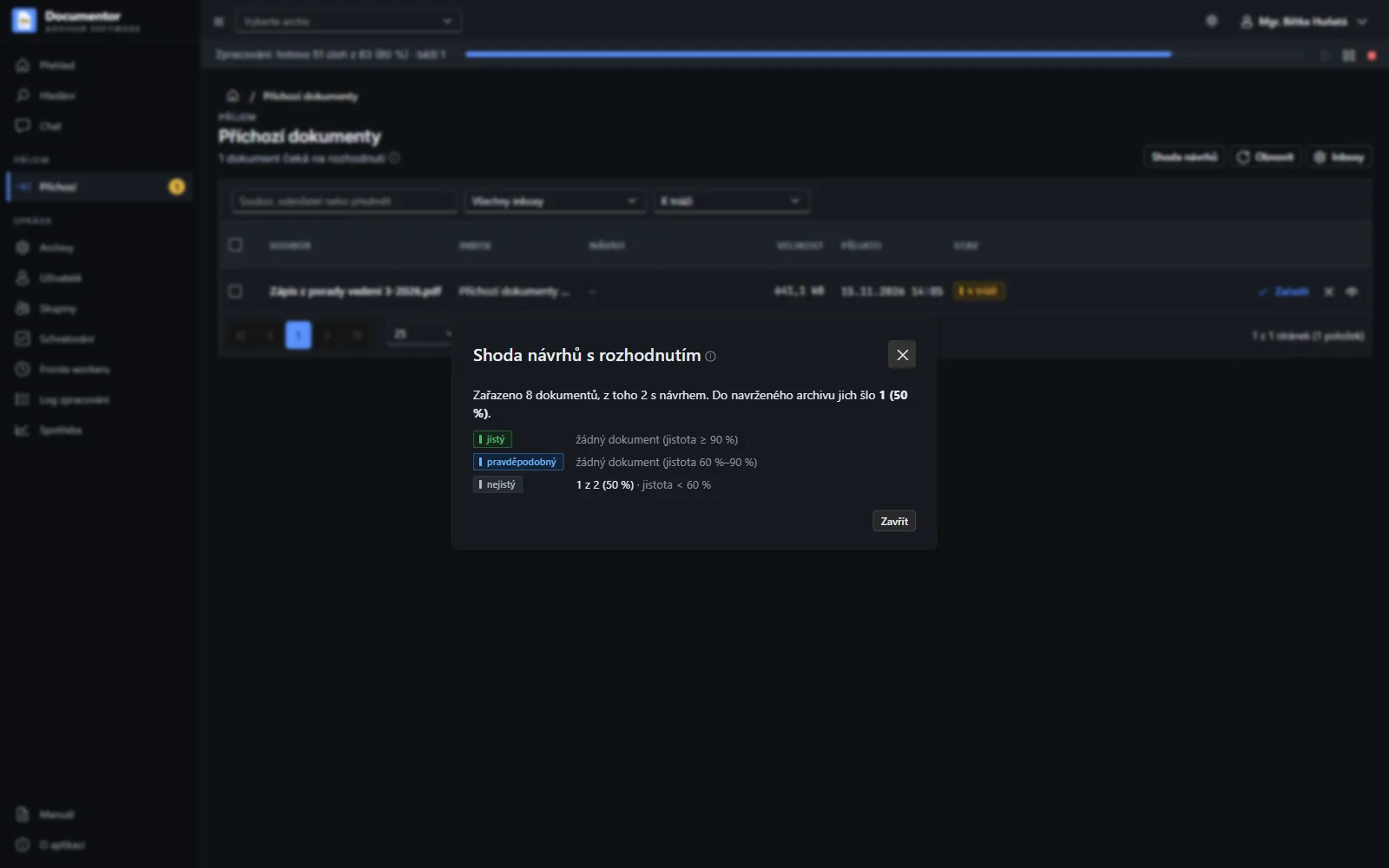
Agreement of suggestionsIt shows how often sorters filed a document into the suggested archive, also by confidence; suggestions from rules and from the sender are not counted. It tells you when the suggestions can be trusted and when it pays off to switch automation on.
-
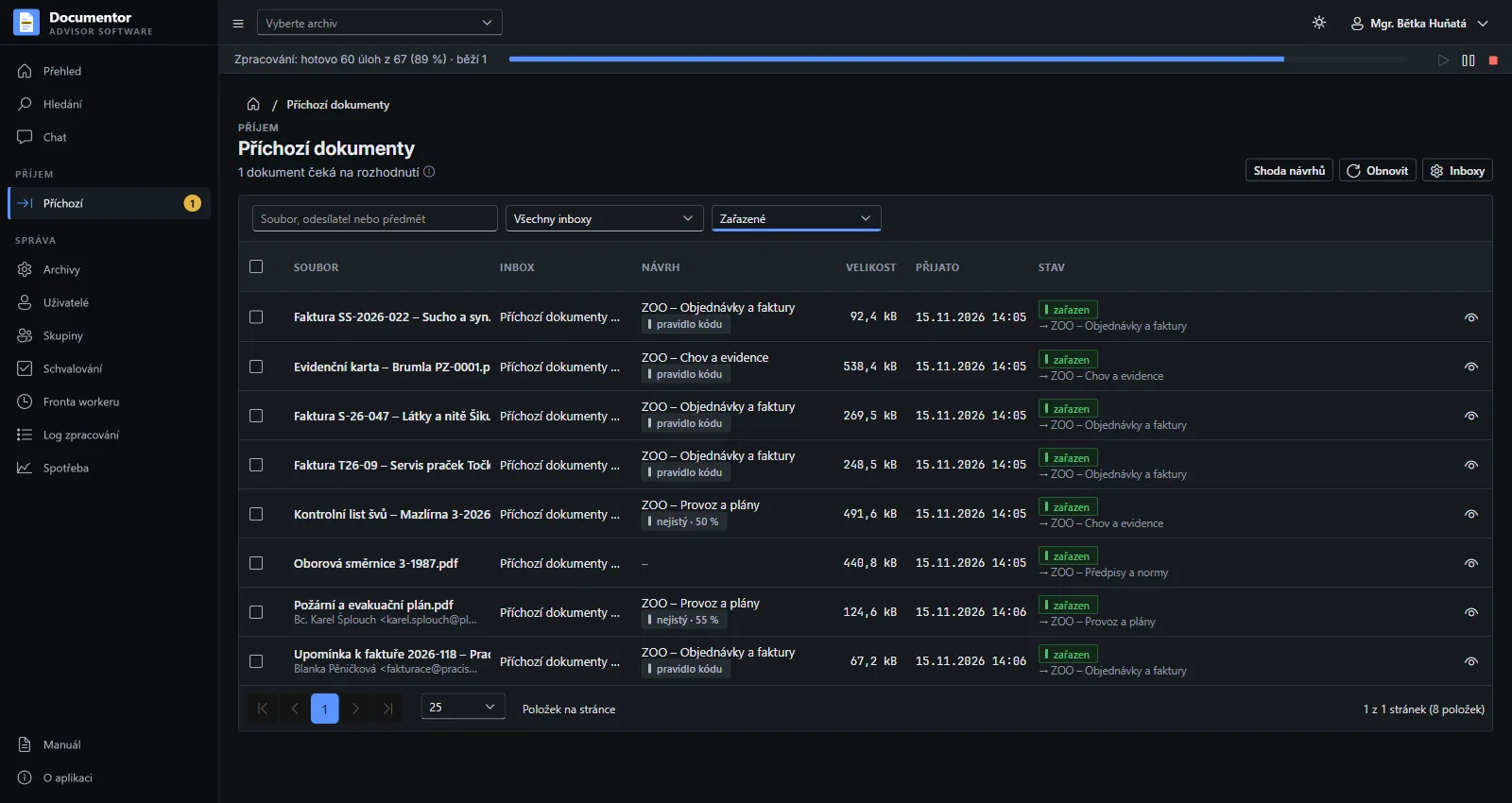
Filed into archivesA filed document is processed like any other: OCR, page recognition, code reading and indexing for search and chat.
-
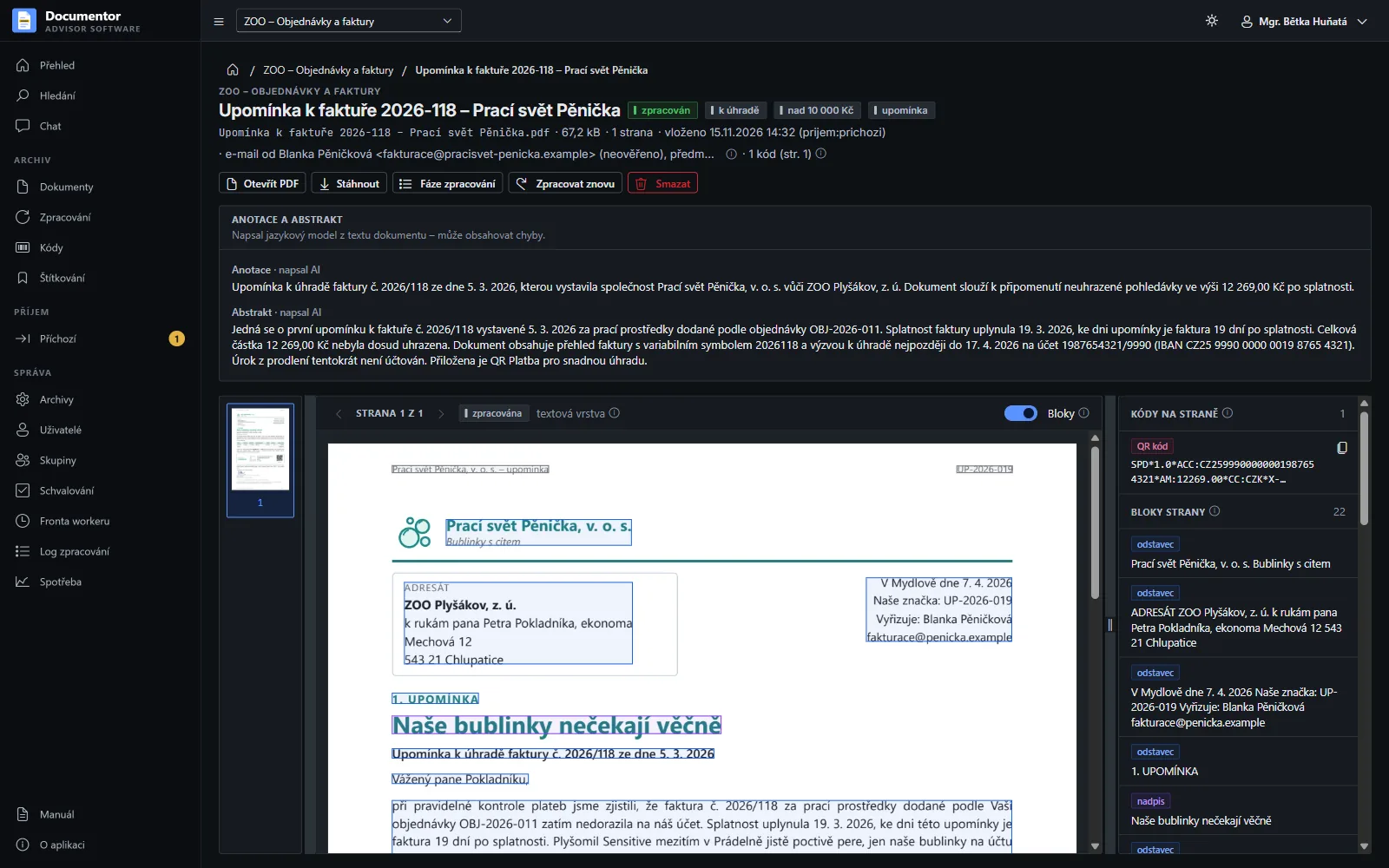
A document from e-mail in the archiveThe sender and subject of the e-mail stay with the document and every reader of the archive sees them marked unverified.
Groups, usage and administration
-
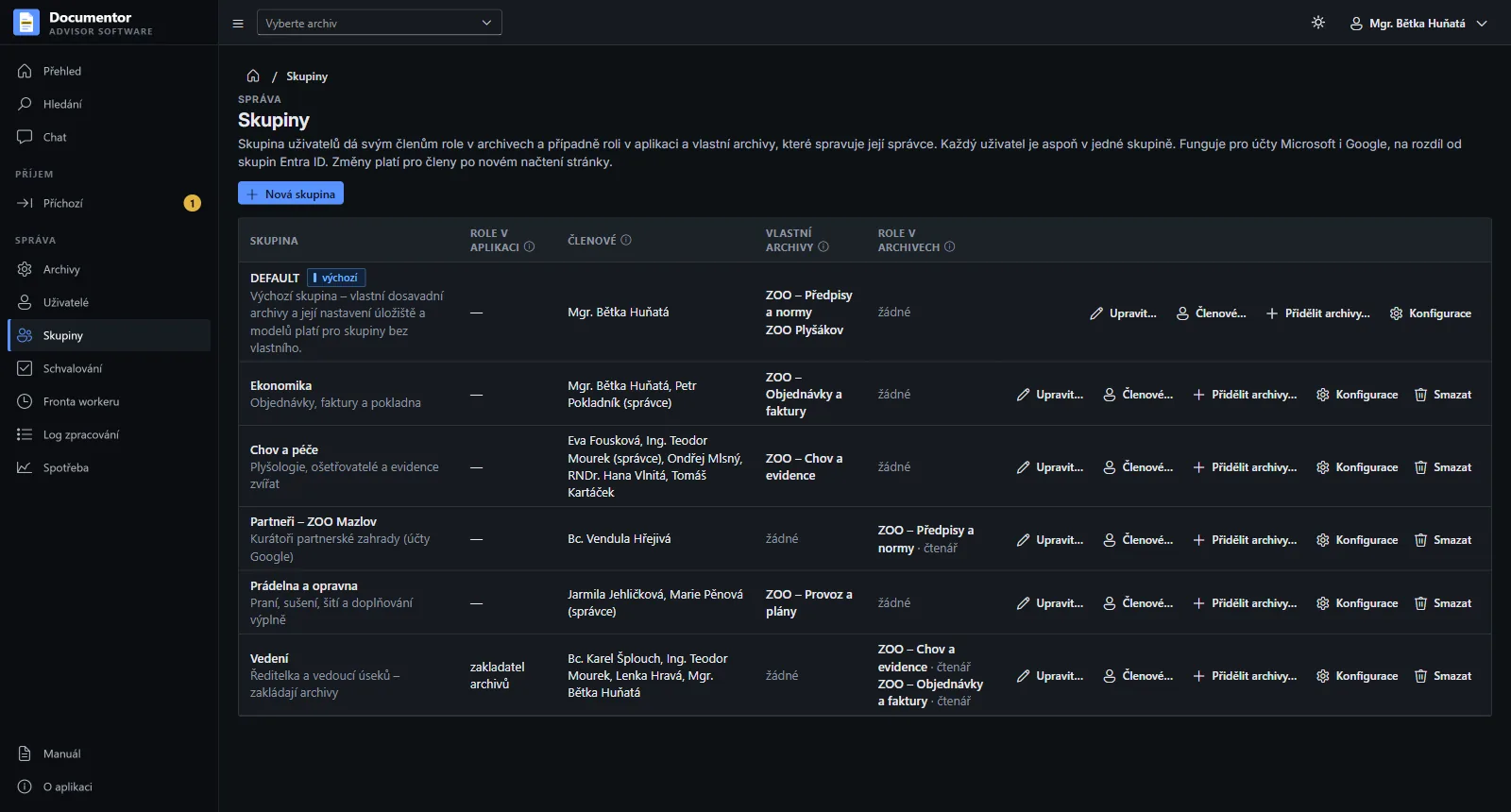
GroupsA group gives its members roles in archives and its own archives, managed by its administrator. It works for Microsoft and Google accounts, so you can let an outside partner into an archive too.
-
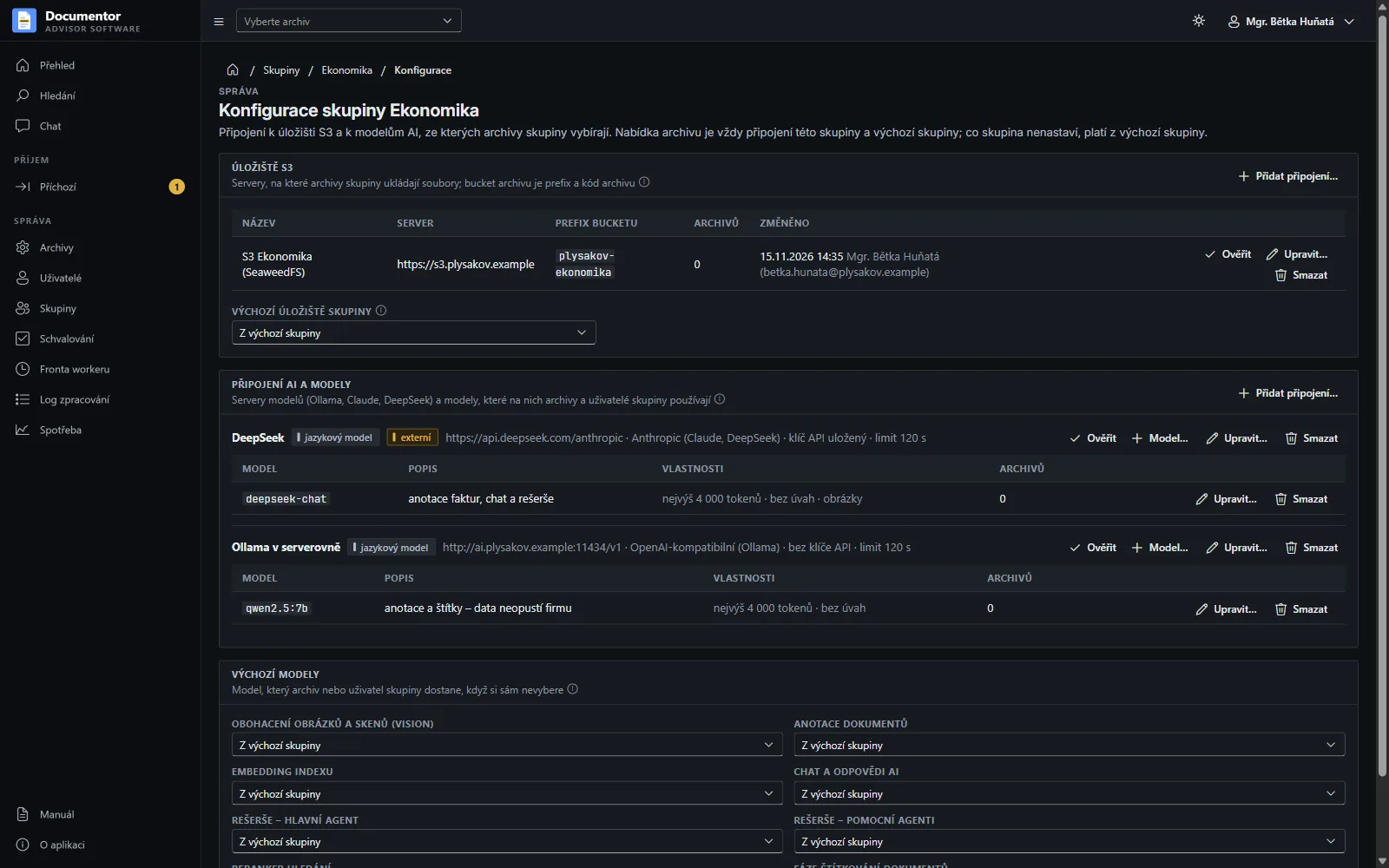
Storage and models of a groupA group can have its own S3 storage and its own AI models, external ones or in its own server room; what it does not set, it takes from the default group. A change by the group administrator is approved by a supervisor.
-
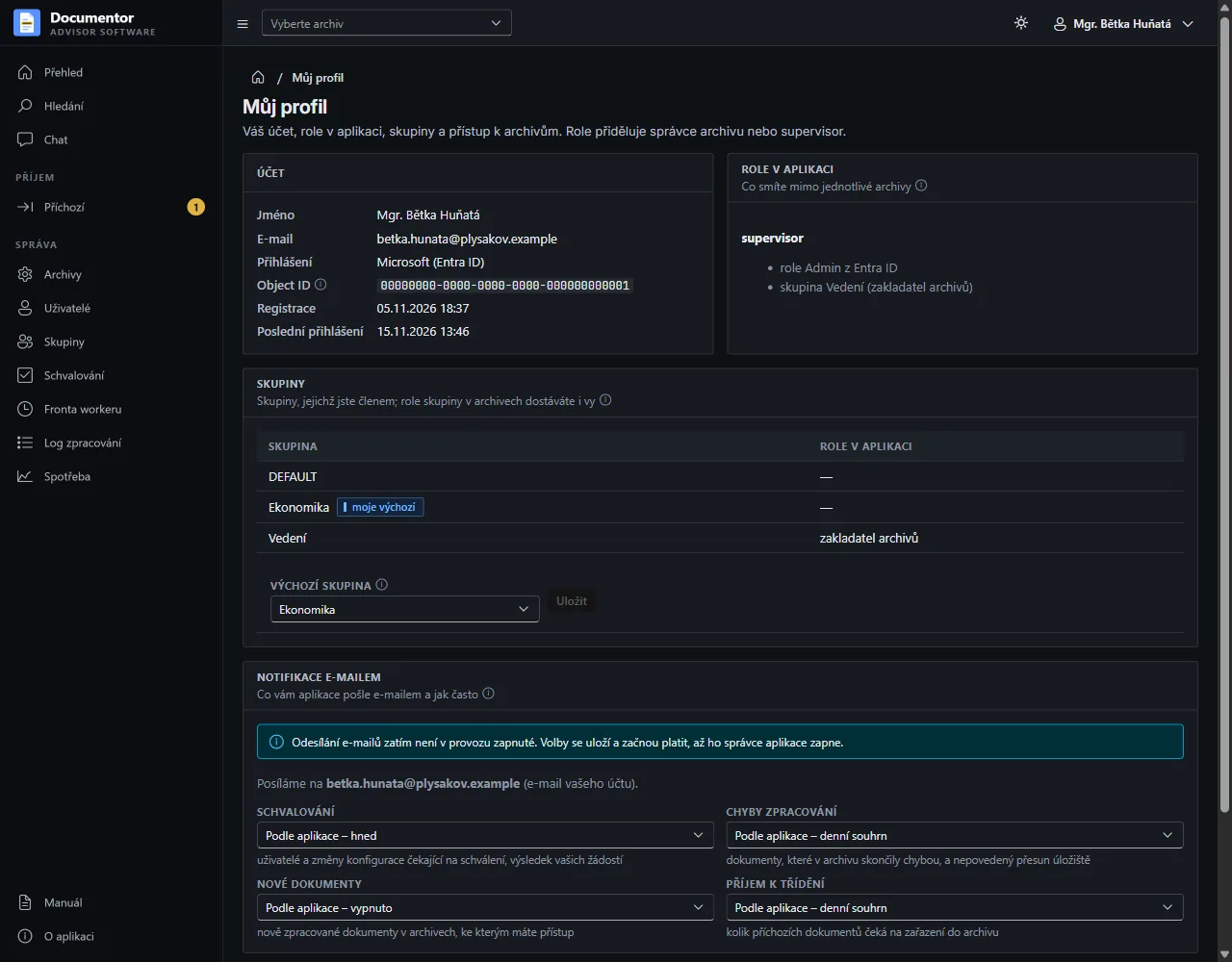
Profile and notificationsEveryone sees their roles and groups, picks a default group and sets what the application e-mails them about and how often – right away, as a daily summary or not at all.
-
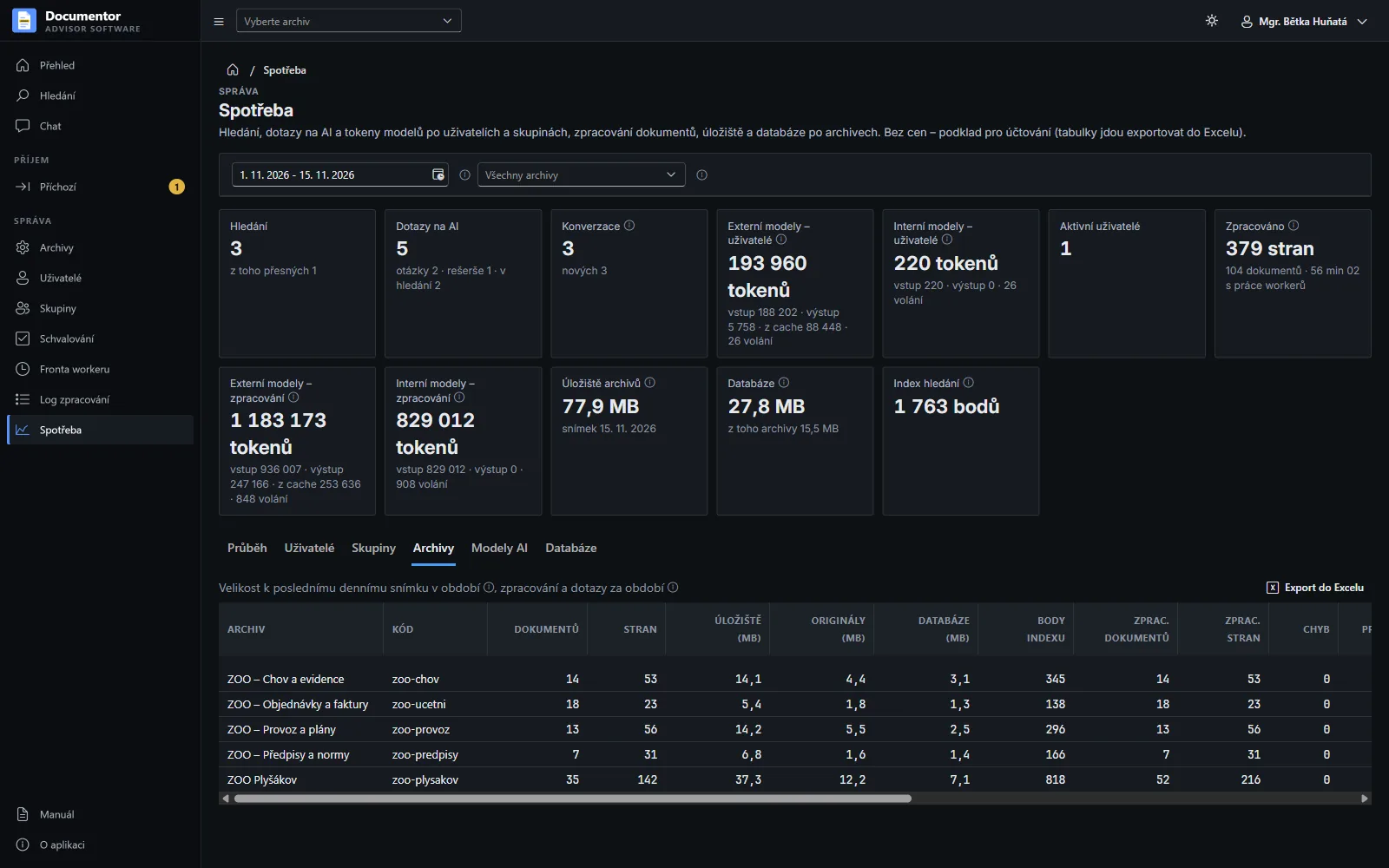
UsageHow much each person searched and asked the AI, how many tokens the models used and how much space the archives take – by user, group, archive and model, with an export to Excel as a basis for billing.
-
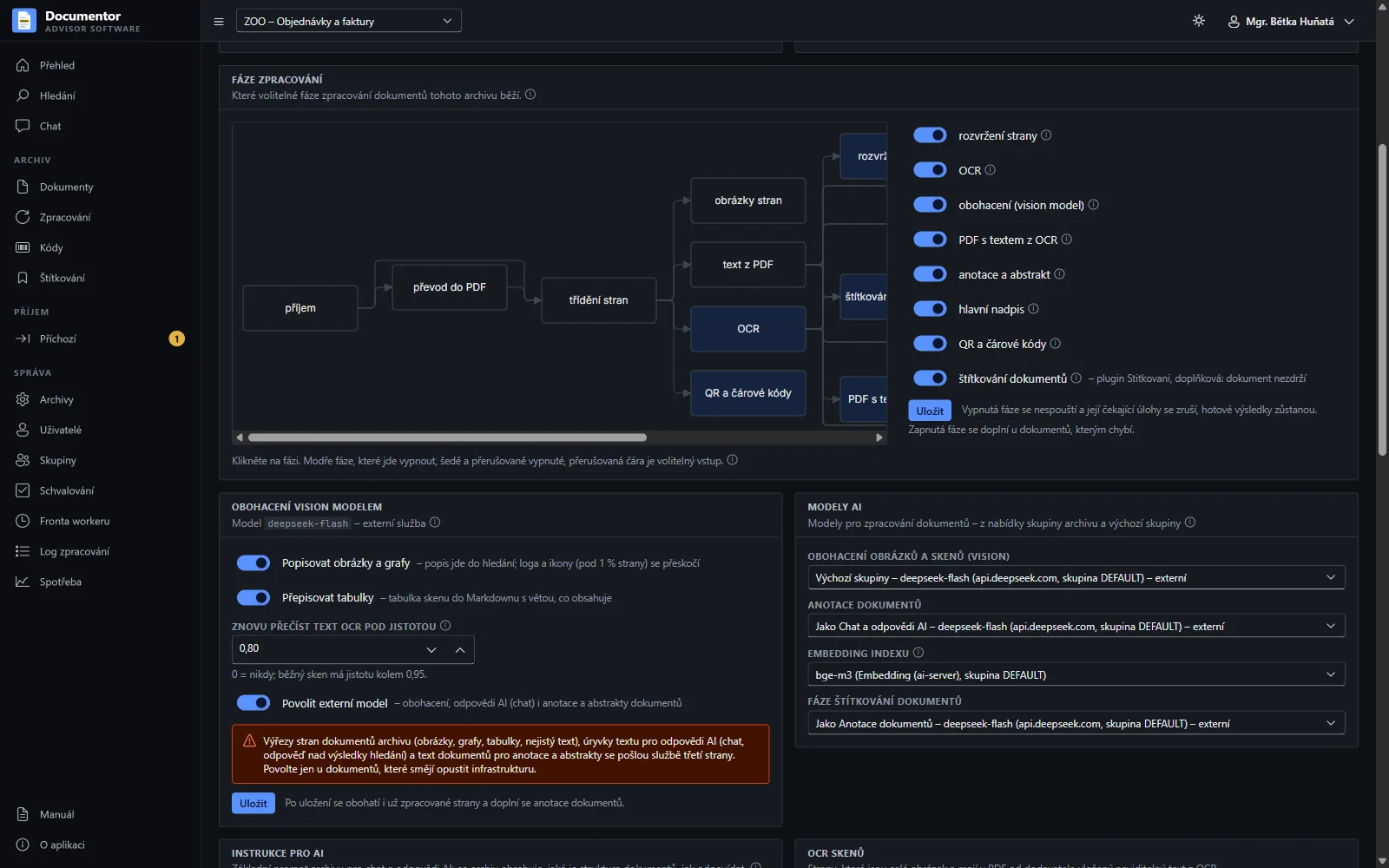
Phases and external AIThe archive administrator switches on optional phases such as code reading and labelling and picks models from the group’s offer. The archive uses an external model only with the administrator’s consent.
We will show you how it works on your own documents.
Send us a few PDFs from your archive – old scans are fine. In 30 minutes you will see how searching them works and how the chat answers.
Already a customer? Sign in